Online Customer Service (OCS) Online User Guide
The RCR Report confirms RCR file transmission, and provides a summary total of all recent RCR activity
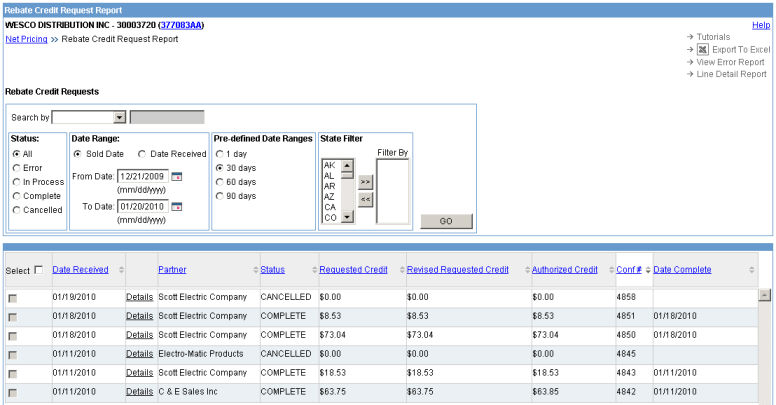
1. Once you've selected the Rebate - Credit Request Reporting option from the Net Pricing home page drop-down menu, a page resembling the example below appears.
If there are file transmissions to be displayed, the box lists default information: all Rebate Transactions (RTs) that are current for the past 90 days, as of today.
Therefore, you may not have any file transmissions in your default view if none have been active over the past three months.
The default sort is by “Sold Date”, most recent first.
2. The rows of line item information that the search yields will have either in black or red colored font:
Items in black have either been cancelled or processed
Items in red have errors that need to be corrected before the rebates can be paid
3. The viewable columns on the RCR Report page include:
Select = Checking the top box selects all available boxes. Un-checking de-selects all checked boxes.
Date Received = Date that Siemens received the RCR file
Details = Hyperlinked information to the next level of rebate information (Status page)
Partner = If you represent a Centralized Account, than this column may have multiple account names listed on the RCR file you submitted to Siemens. If you represent a Decentralized Account, than this column may contain as few as one entry, generally your company’s name.
Status = Potential options that you may view in this column are Complete, Canceled, In Process, or Error
Requested Credit = Sum of the requested credit amount on all Rebate Transactions (RTs) and detail lines. Includes cancelled RTs and detail lines.
Revised Requested Credit = Sum of the updated requested credit amount on all RTs and detail lines, omitting any cancelled credits. Excludes cancelled RTs and detail lines.
Authorized Credit = Sum of Valid and Complete line item totals
Confirmation # = A number that uniquely identifies the rebate request and covers all transactions within the request. Users receive their Confirmation numbers via email.
Date Complete = The date that the RCR file you submitted was successfully approved and accepted into the Siemens’ billing system for credit.
4. There are 2 methods of drilling down to the next page – the “Status” page – for more information, and they both involve selecting a hyperlink as shown in the above illustration:
Details = These links are always hyperlinks, and if you select one, it will take you to a Status page that lists all RTs for that file transaction.
ERROR = If you select an “ERROR” hyperlink, it will pull up a Status page that lists only the errors for that file transaction…
In the Status column, only the “ERROR” status codes are hyperlinked…
The other status codes – COMPLETE, IN PROCESS, and CANCELED – are never hyperlinked
So the two ways to get to a Status page from the RCR Report page are to select either “Details” or “ERROR” hyperlinks.
Additionally, a Line Detail Report can be selected by clicking the Line Detail Report link in the upper right corner Rebate Credit Request Report page. Clicking the link will display the Line Detail Report page and allow you to enter the search criteria, as shown below.
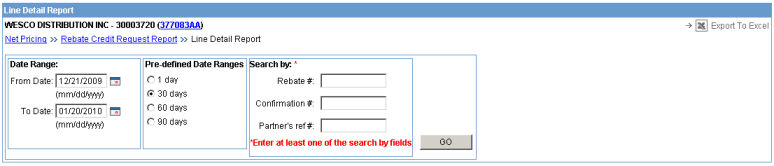
Enter your search criteria including either a Rebate #, Confirmation #, or Partner's Ref # and click GO. The Line Detail Report will be displayed.