-
Next to Step 1, select SPA Reporting from the Net Pricing drop-down menu.
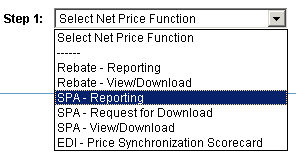
Figure 1: SPA Reporting Function -
Next to Step 2, select either Search by Field or Search by Status.
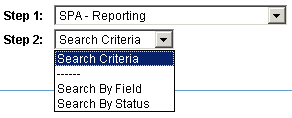
Figure 2: Search Criteria By Field or Status
a. If Searching by “Field Name” -- The "Select Field" drop-down appears next to Step 3 and consists of three reporting fields: SPA Number, End Customer and Days Remaining.

Figure 3: Search Criteria Field
After selecting a field, Step 4 appears and allows you to enter text into the search text box. This search is always by Partial Text. The Go button allows you to search and retrieve the SPAs defined by the search criteria.
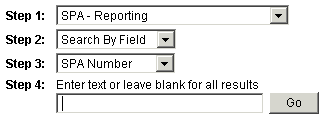
Figure 4: Search Criteria Field Data
b. If Searching by “Search by Status” -- The “Select Status” drop-down appears next to Step 3 and consists of three choices: All, Approved, and Expired.
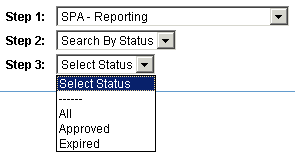
Figure 5: Search Criteria Status
After selecting a status, the Go button appears allowing you to search and retrieve the SPAs defined by the search criteria.
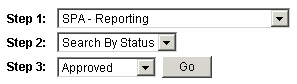
Figure 6: Search Initiation -
Click Go and your SPA Report default information appears.
Note: Standing SPA Types will not be displayed as shown below.

Figure 7: SPA Reporting Page
Note: All headings can be sorted in ascending or descending order by pressing the directional arrow. -
Click Print to print your results.
Note: You can also export the SPA Report to an Excel format via the link in the top-right corner of the SPA - Reporting page.