
Online Customer Service (OCS) Online User Guide
The Detail Page provides information on a single rebate number, listed by individual line items
This is the deepest level of information available in the RCR Report; no further data is required to make line-item fixes and changes
Features of, and Changes to, the Detail Page:
Highlight/Mouse-over functionality
The Details column has been removed.
Change the column header from ‘Quantity’ to ‘Req. (Requested) Qty’
Add column for ‘Avail. Qty’, which will display the quantity returned from the bank validation
Modify ‘Accept Pricing’ button to read ‘Accept Siemens Pricing and Qty on Selected Lines’. Have the function include the acceptance of the Siemens Qty.
Replace ‘Siemens Credit Per Item’ column with ‘Partner Extended Credit’
Replace ‘Siemens Net Price per Item’ column with ‘Siemens Extended Credit’
References to Rebate Version has been removed, as it is no longer necessary
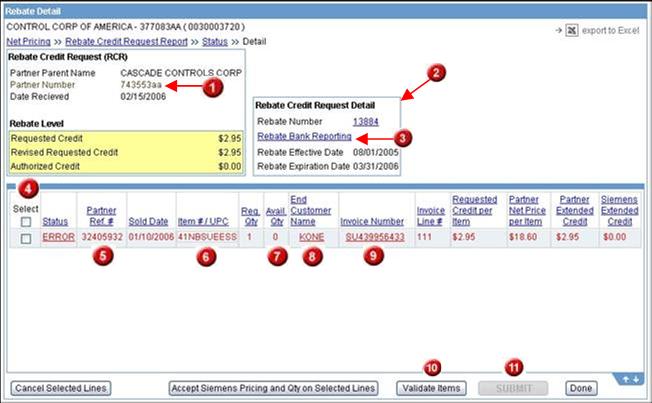
Explanation of Numbers:
1 = Partner Number is a number assigned by Distributors for their convenient cross-reference, and will also appear on the invoice
2 = Box no longer contains any reference to Version Number<invalid>
3 = Rebate Bank Reporting link takes you to the Bank Reporting Number <invalid>
4 = Select - Checking the top box selects all available boxes. Un-checking de-selects all checked boxes.
5 = Partner Ref. # is a number assigned by Distributors for their convenient cross-reference, and will appear on the invoice
6 = Item # / UPC - Items in error are displayed in a modifiable text box, allowing user to edit information, and then click the Validate Items button
7 = Avail. Qty, which will display the quantity returned from the bank validation
8 = End Customer Name - If the End Customer Name is in error, than this field is hyperlinked to pop the “Select End Customer" function in a pop-up window. By correcting one, the application will correct all other matching end customer errors (as designed today).
9 = Invoice Number - When the Rebate is in Error due to duplication of invoice, the Invoice Number will be underlined and hyperlinked. Upon selecting the link, it will pop a new window showing Duplicate Invoice Information.
10 = Validate Items button is clicked on after User makes any corrections
11 = SUBMIT button becomes enabled once all errors are either fixed or cancelled. After clicking on the SUBMIT button, the information will be sent to SAP for price/quantity validation. The Status for those lines will be “In Process” until they come back from SAP. After clicking SUBMIT, the user is taken back to the “Status” Page.