Industry Mall Online User Guide
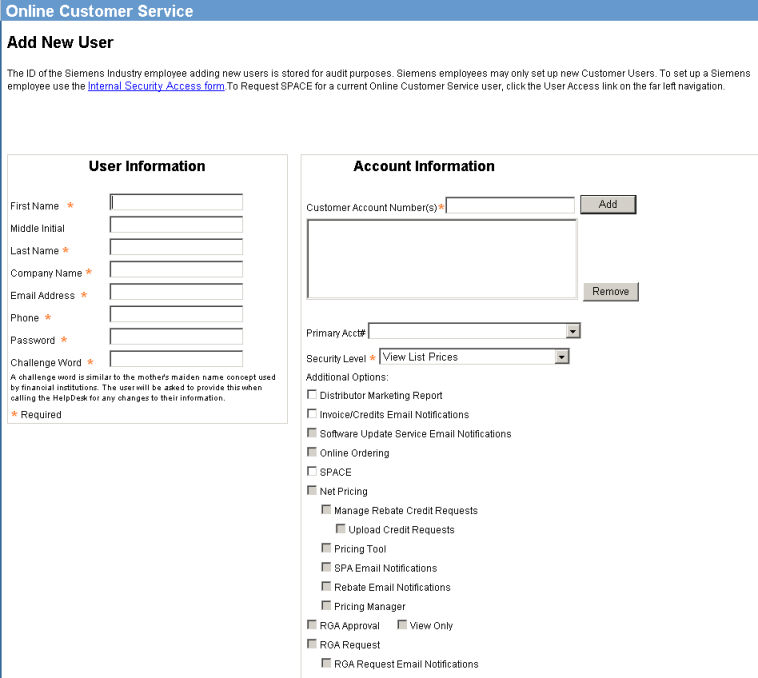
To add a new user, under Account Administration, click Add New User. The Add New User page displays.
Note: You can also click the Add New User in the middle of the home page.
Below User Information, enter the first name, middle initial, last name, company name, password, challenge word, and e-mail address and phone number. All required fields are indicated with an asterisk (*).
Below Account Information, enter the customer's account number and click Add. Additional account numbers can be added as needed.
Note: The Primary Acct# should be entered first.
Select View List Prices or View Net Prices as the Security Level for the user.
Note: When you have logged in as App Support (Group 6 user), the Customer Manager/Account Administrator security level is available in the Security Level drop down menu.
Select different features of the system which you want this user to access.
Note: Depending on the Security level and the Additional Options you select, different features will be available to the user.
Click Submit for the system to save the information and send out an e-mail.